
Get started
Tabs on Hold saves tabs into sessions, with screenshot previews to help you find them again.
Select a screenshot in this guide to view it full size.
Install Tabs on Hold from the Chrome Web Store.
Pin the extension
Open Chrome’s Extensions menu and pin Tabs on Hold. Click its toolbar icon to choose which tabs to save.
Chrome 116 or later is required.
Save your tabs
- Click Tabs on Hold in the toolbar.
- Choose the current tab, selected tabs, the current window, or all regular windows.
- Leave Capture visible-area previews enabled if you want screenshots.
- Click Set tabs aside.
Chrome asks for optional website access when needed for previews. Choose Save without previews to save URLs without granting that access.
Tabs close after their data is saved. Failed captures leave their source tabs open. Internal pages and incognito tabs are excluded. Pinned tabs are excluded unless you enable them in Settings.
Open your saved library
Click the saved tab/session count at the bottom of the popup, or press Alt+Shift+S.
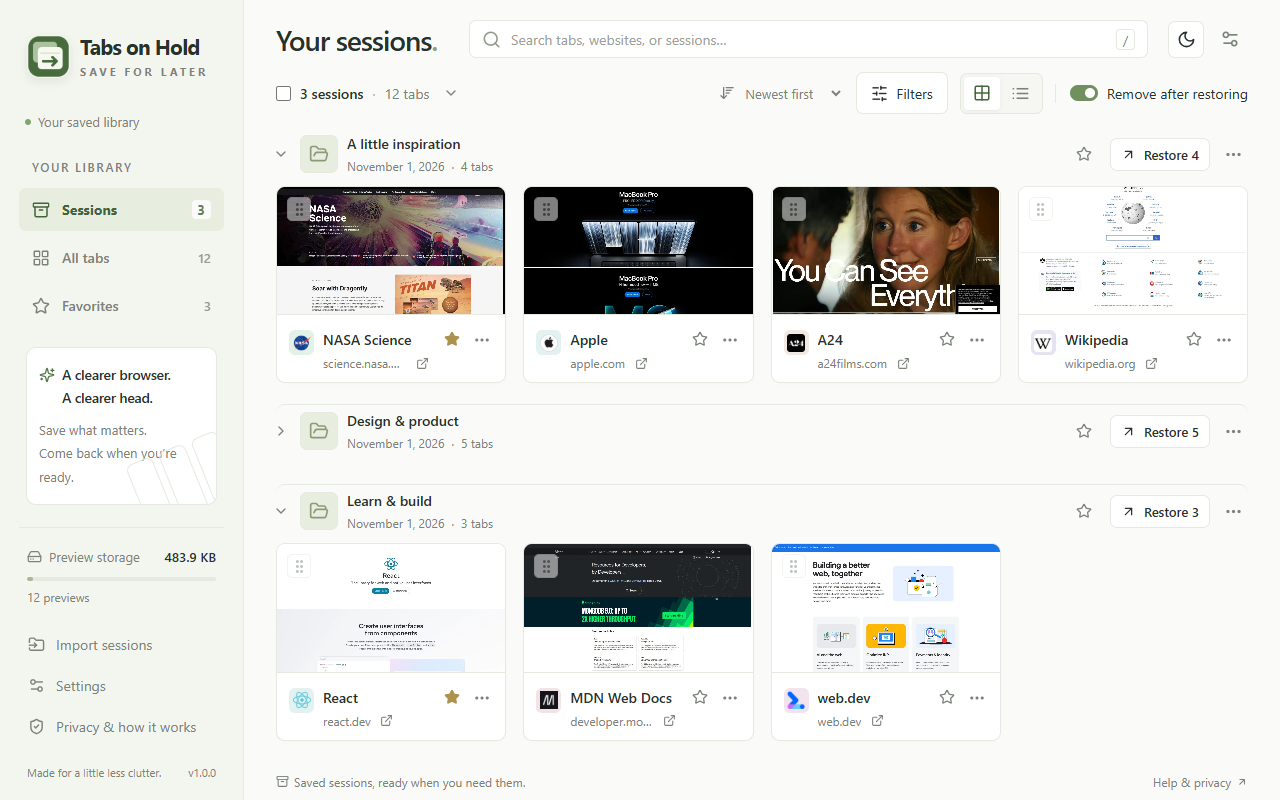
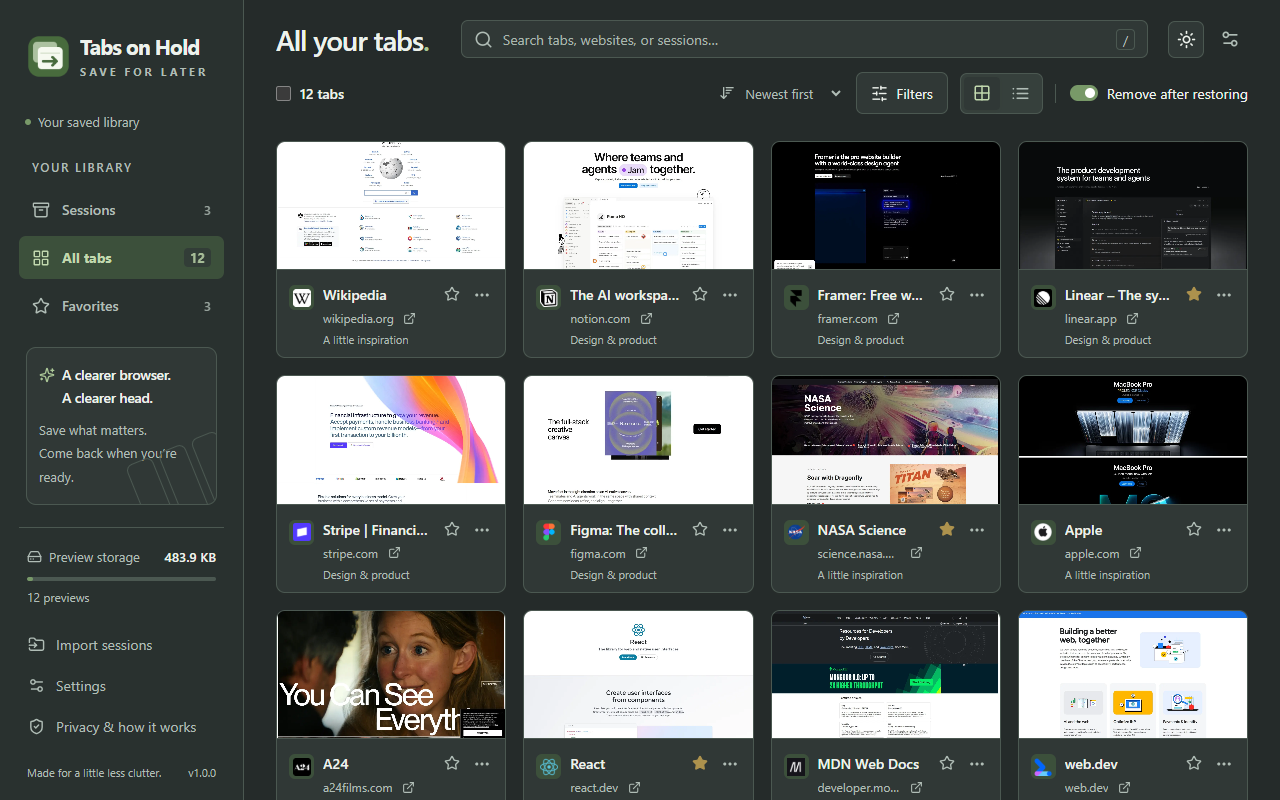
Use Sessions to browse by session, All tabs for the whole library, or Favorites for pages you marked.
Organize your library
- Click a session’s name to rename it.
- Drag tabs to reorder them or move them between sessions.
- Use a tab’s menu to move it without dragging.
- Click a star to favorite a tab or session.
Use the arrow beside a session to collapse or expand it. Select multiple tabs to move, restore, or delete them together.
Find a saved tab
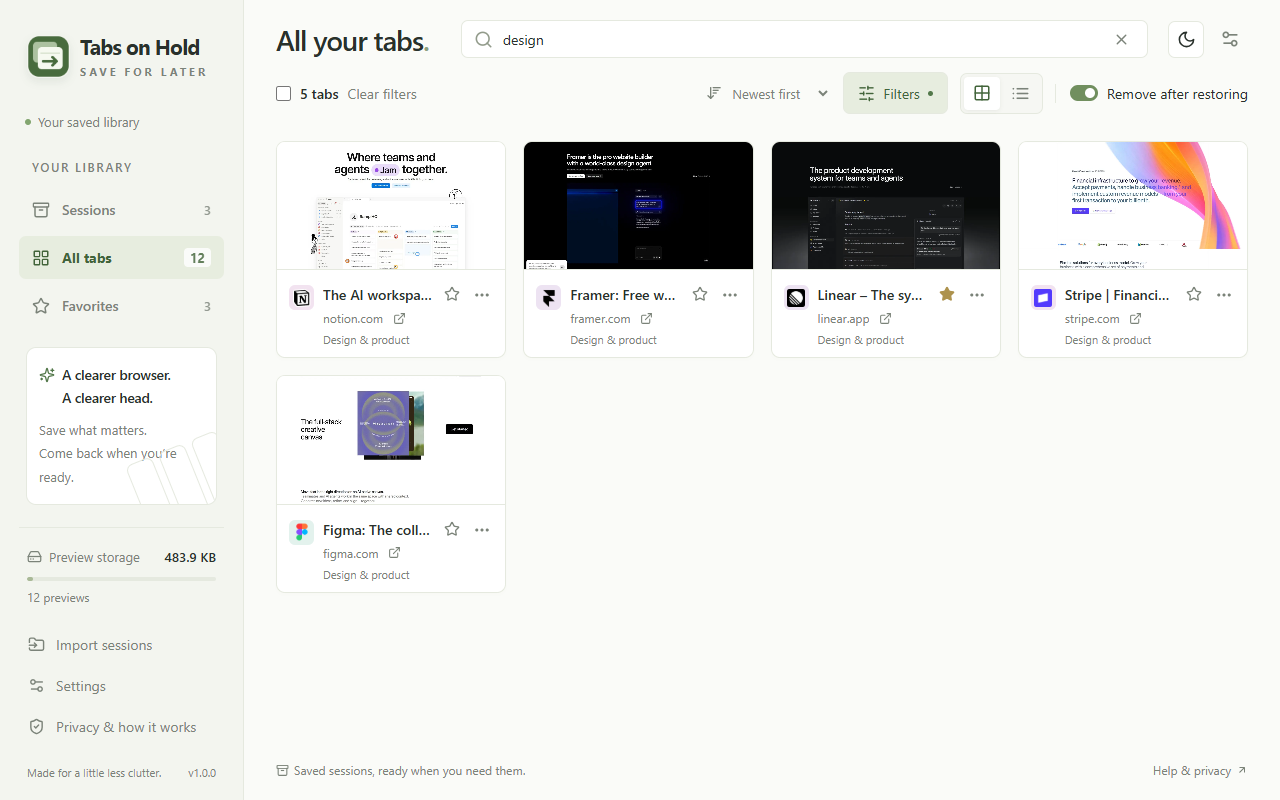
Search by page title, website, or session name. Press / to focus search. In this example, searching for “design” finds the five tabs in Design & product.
Use filters and sorting to narrow the results further.
Switch to list view
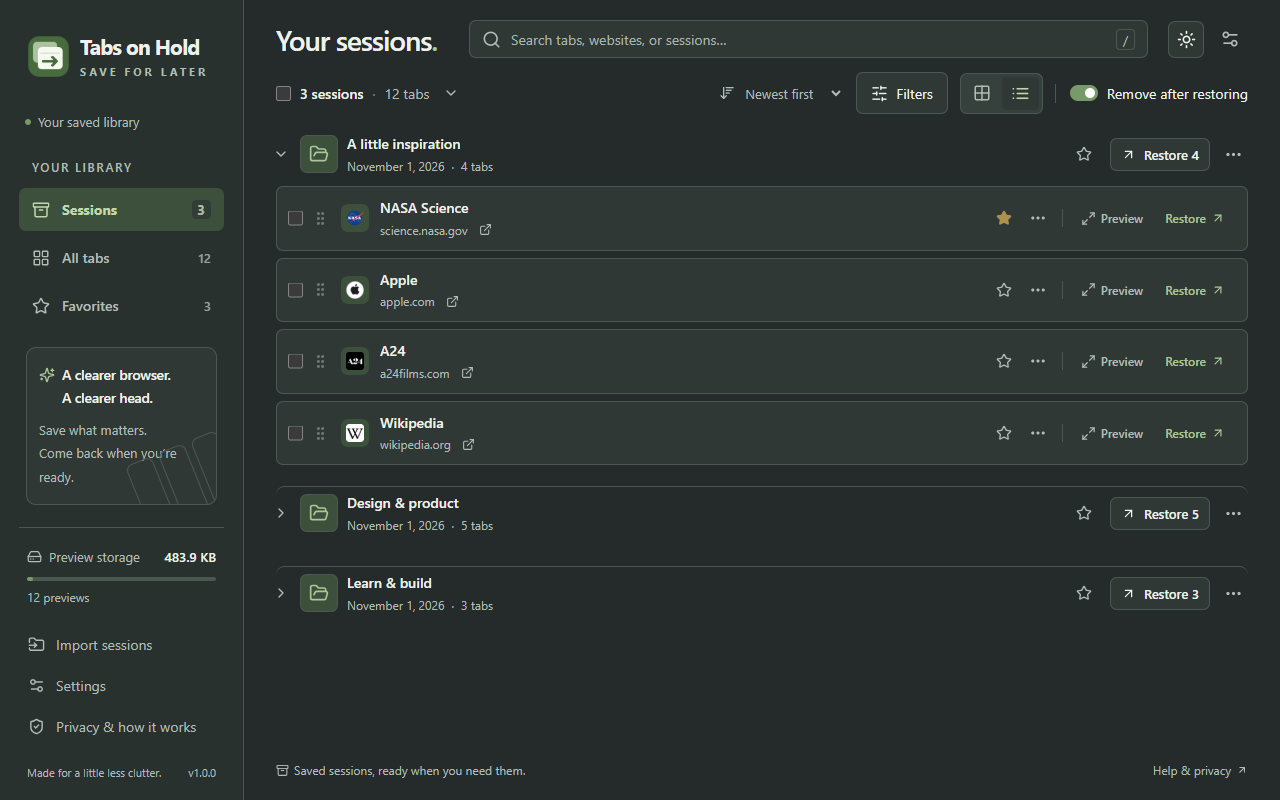
Use the list button above the library for a compact view with page titles, websites, and preview and restore actions. Switch back to card view to browse by screenshot.
Preview a saved page
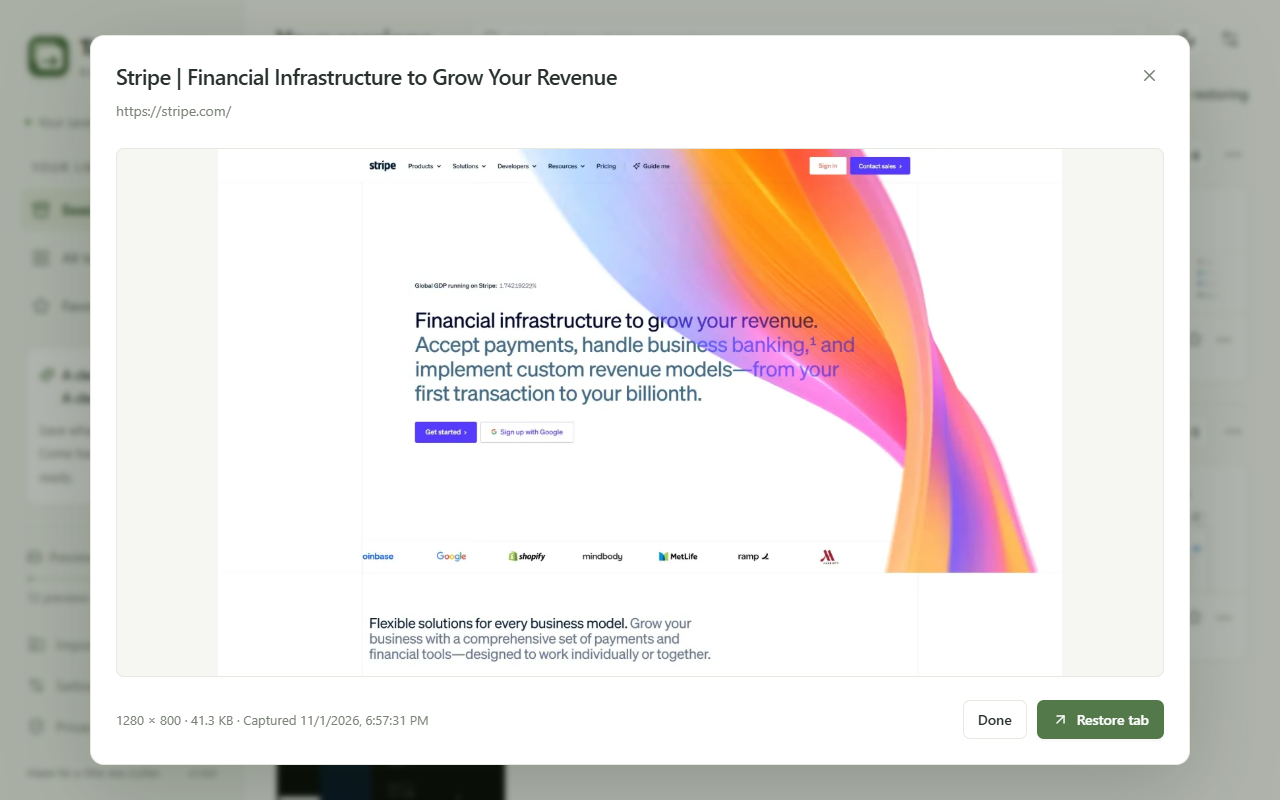
Click a screenshot or choose Preview to open its saved visible area without reopening the website. Choose Done to return to your library, or Restore tab to open that page.
Previews show the visible area at capture time, rather than the whole scrolling page. They are snapshots, so a website may look different when you reopen it.
Restore your tabs
- Choose Restore for one saved tab.
- Use a session’s Restore button to open the whole session in a new window.
- Choose Open without removing from a tab’s menu to open it and keep the saved copy.
Remove after restoring is enabled by default. Turn it off to keep restored pages in your library. A failed restore keeps its saved data.
Saved pinned state, muted state, and tab groups are restored. Unsaved forms, page history, scroll position, and playback state are not saved. A session does not recreate the original arrangement of browser windows.
Choose your appearance
Use the sun or moon button at the top of the library to switch between light and dark. In Settings, choose System to follow your computer’s appearance.
Keep a backup
Choose Export a backup in the saved library sidebar to export a JSON copy of your sessions and screenshots. See Backups & imports for steps.
Keyboard shortcuts
| Shortcut | Action |
|---|---|
Alt+Shift+A | Save tabs in the current window |
Alt+Shift+S | Open the saved library |
/ | Focus search in the library |
Change Chrome shortcuts at chrome://extensions/shortcuts.